
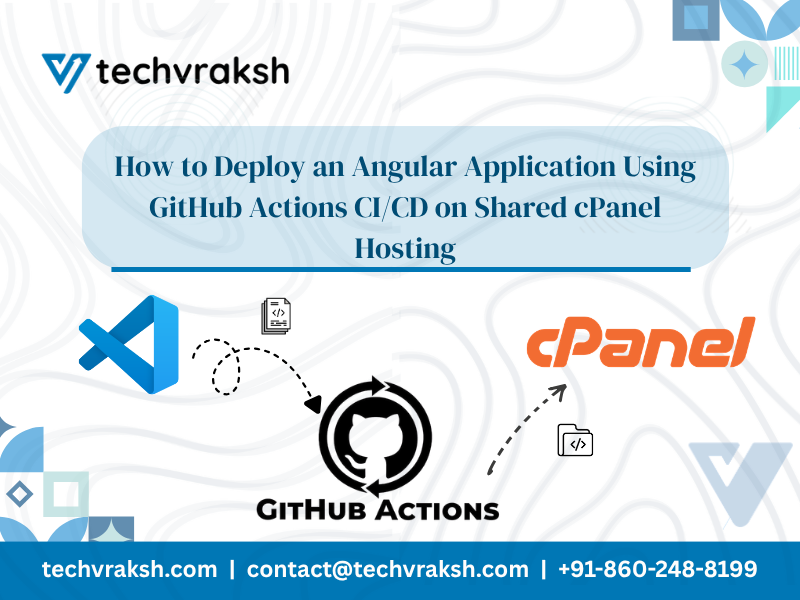
Modern frontend development requires fast, reliable, and automated deployments. Manually building Angular applications and uploading files through cPanel File Manager or FTP becomes inefficient as projects grow. A better approach is implementing a CI/CD pipeline using GitHub Actions that automatically builds and deploys your Angular application whenever code is pushed to GitHub. This guide explains…
Modern frontend development requires fast, reliable, and automated deployments. Manually building Angular applications and uploading files through cPanel File Manager or FTP becomes inefficient as projects grow.
A better approach is implementing a CI/CD pipeline using GitHub Actions that automatically builds and deploys your Angular application whenever code is pushed to GitHub.
This guide explains how to deploy an Angular application to shared cPanel hosting using:
- Angular
- GitHub Actions
- FTP Deployment
- Shared cPanel Hosting
We will also cover an important production concept often missed in shared hosting deployments:
✔ Automatic Node.js app restart using restart.txt
This becomes critical when using:
- Angular SSR
- Node.js backend
- Passenger-based cPanel hosting
Why Use CI/CD for Angular Deployment
Without CI/CD:
- Developers manually upload files
- Deployment errors increase
- Releases become inconsistent
- Rollbacks are difficult
- Team collaboration slows down
With CI/CD:
✔ Automatic deployments
✔ Faster release cycles
✔ Consistent production builds
✔ Reduced manual work
✔ Easier collaboration
Every push to GitHub can automatically deploy the latest version of your Angular application.
Deployment Architecture Overview
Workflow
Developer Pushes Code
        ↓
GitHub Repository
        ↓
GitHub Actions Workflow
        ↓
Angular Production Build
        ↓
FTP Deployment
        ↓
cPanel public_html
        ↓
restart.txt Trigger
        ↓
Node.js Application Restart
Prerequisites
Before starting, ensure you have:
Required Setup
✔ Angular application
✔ GitHub repository
✔ Shared cPanel hosting account
✔ FTP access enabled
✔ Node.js application support in cPanel
✔ Passenger-enabled hosting (for SSR apps)
Understanding restart.txt in cPanel
Many shared hosting providers use Phusion Passenger to run Node.js applications.
Unlike VPS or Docker environments, you usually cannot directly run:
pm2 restart appor
systemctl restarton shared hosting.
Instead, cPanel uses a special file:
tmp/restart.txtWhen this file changes, Passenger automatically restarts your Node.js application.
Why restart.txt is Important
Without restarting:
- Old application code may continue running
- SSR changes may not reflect
- Backend updates may not apply
- Memory state may remain stale
Updating restart.txt forces Passenger to reload the latest deployment.
When You Need restart.txt
You NEED it for:
✔ Angular SSR
✔ Node.js backend
✔ Express.js apps
✔ NestJS apps
✔ Any Passenger-hosted Node.js runtime
You DO NOT need it for:
❌ Static Angular SPA hosting only
Step 1: Prepare Angular Application
Ensure your Angular production environment is configured correctly.
Example environment.prod.ts
export const environment = {
  production: true,
  apiUrl: 'https://api.yourdomain.com'
};
Step 2: Test Production Build Locally
Run:
ng build --configuration productionFor Angular SSR:
npm run build:ssrGenerated files may appear inside:
dist/app-name/browser
dist/app-name/server
Step 3: Configure Angular Routing on cPanel
Inside public_html, create .htaccess:
<IfModule mod_rewrite.c>
  RewriteEngine On
  RewriteBase /

  RewriteRule ^index\.html$ - [L]

  RewriteCond %{REQUEST_FILENAME} !-f
  RewriteCond %{REQUEST_FILENAME} !-d

  RewriteRule . /index.html [L]
</IfModule>
This ensures Angular routes work correctly.
Step 4: Configure FTP Access
Inside cPanel:
- Open FTP Accounts
- Create FTP credentials
- Note:
- FTP host
- Username
- Password
Step 5: Add GitHub Secrets
Navigate to:
GitHub Repository → Settings → Secrets and Variables → ActionsAdd:
| Secret Name | Example |
|---|---|
| FTP_SERVER | ftp.yourdomain.com |
| FTP_USERNAME | your-ftp-user |
| FTP_PASSWORD | your-password |
Step 6: Create GitHub Actions Workflow
Create:
.github/workflows/deploy.ymlStep 7: Production-Ready GitHub Actions Workflow
Updated CI/CD Pipeline with restart.txt
name: 🚀 Production CI/CD Pipeline to cPanel

on:
  push:
    branches:
      - main

  workflow_dispatch:

jobs:
  build-and-deploy:
    name: 🎉 Build & Deploy Angular App
    runs-on: ubuntu-latest

    steps:
      # Checkout repository
      - name: 🚚 Checkout Source Code
        uses: actions/checkout@v4

      # Setup Node.js
      - name: 🟢 Setup Node.js
        uses: actions/setup-node@v4
        with:
          node-version: 22
          cache: npm

      # Install dependencies
      - name: 📦 Install Dependencies
        run: npm ci

      # Build Angular Production
      - name: 🛠️ Build Angular Production
        run: npm run build -- --configuration production

      # Verify build output
      - name: 📂 Verify Build Output
        run: ls -la dist/app-name/browser

      # Prepare deployment package
      - name: 📁 Prepare Deployment Package
        run: |
          mkdir -p deploy-package

          # Copy Angular browser build
          cp -R dist/app-name/browser/* deploy-package/

          # Create restart trigger for Passenger
          mkdir -p deploy-package/tmp
          touch deploy-package/tmp/restart.txt

      # Deploy via FTP
      - name: 🚀 Deploy to cPanel via FTP
        uses: SamKirkland/FTP-Deploy-Action@v4.3.5
        with:
          server: ${{ secrets.FTP_SERVER }}
          username: ${{ secrets.FTP_USERNAME }}
          password: ${{ secrets.FTP_PASSWORD }}
          local-dir: ./deploy-package/
          server-dir: /public_html/
          dangerous-clean-slate: false
Important Configuration Updates
Replace app-name
Update:
dist/app-name/browserwith your actual Angular project name.
Example:
dist/admin-panel/browserHow restart.txt Works
During deployment:
mkdir -p deploy-package/tmp
touch deploy-package/tmp/restart.txt
This:
- Creates a
tmpfolder - Generates or updates
restart.txt - Triggers Passenger to restart the Node.js application
Passenger watches this file automatically.
Recommended Folder Structure on cPanel
Example:
public_html/
 ├── browser/
 ├── server/
 ├── tmp/
 │    └── restart.txt
 ├── package.json
 └── .htaccess
Important Note About Static Angular Apps
If your application is:
✔ Pure Angular SPA
✔ No SSR
✔ No Node.js backend
Then:
❌ restart.txt is NOT required
Because Apache simply serves static files.
When Using Angular SSR
If using Angular SSR:
Your deployment package may need:
browser/
server/
package.json
tmp/restart.txt
Your Node.js app entry may be:
"main": "server/server.mjs"depending on Angular version.
Common Deployment Issues
1. SSR Changes Not Reflecting
Cause
Node.js process not restarting.
Solution
Ensure:
tmp/restart.txtexists and gets updated during deployment.
2. Angular Route Refresh Gives 404
Cause
Missing .htaccess.
Solution
Configure Apache rewrite rules.
3. Deployment Uploads Empty Files
Cause
Wrong dist path.
Solution
Verify actual Angular output directory.
4. FTP Deployment Fails
Cause
Incorrect credentials or permissions.
Solution
Verify:
- FTP access
- Folder permissions
- Hosting configuration
Recommended Improvements
Add Automated Testing
Before deployment:
- name: Run Tests
  run: npm run test -- --watch=false --browsers=ChromeHeadless
Add Multi-Environment Deployments
Example:
- Development
- Staging
- Production
based on Git branches.
Add Dependency Caching
Already included:
cache: npmThis improves build speed significantly.
Security Best Practices
Never hardcode:
❌ FTP passwords
❌ API keys
❌ Environment secrets
Always use GitHub Secrets.
Advantages of GitHub Actions for cPanel Deployment
✔ Native GitHub integration
✔ Automated deployments
✔ Easy setup
✔ Scalable workflows
✔ Reduced manual effort
Even traditional shared hosting can support modern CI/CD workflows effectively.
How TechVraksh Helps Businesses Automate Deployments
At TechVraksh, we help businesses:
✔ Build CI/CD pipelines
✔ Automate Angular and Node.js deployments
✔ Configure SSR deployments on shared hosting
✔ Optimize deployment workflows
✔ Improve DevOps infrastructure
We focus on reliable, scalable, and maintainable deployment systems.
Final Thoughts
Manual deployments eventually create operational bottlenecks.
Using GitHub Actions with cPanel hosting allows teams to:
- Deploy faster
- Reduce errors
- Maintain consistency
- Improve development velocity
And when working with SSR or Node.js applications on shared hosting, properly handling restart.txt becomes essential for reliable deployments.
The goal is not just automation.
It is dependable and scalable software delivery.